

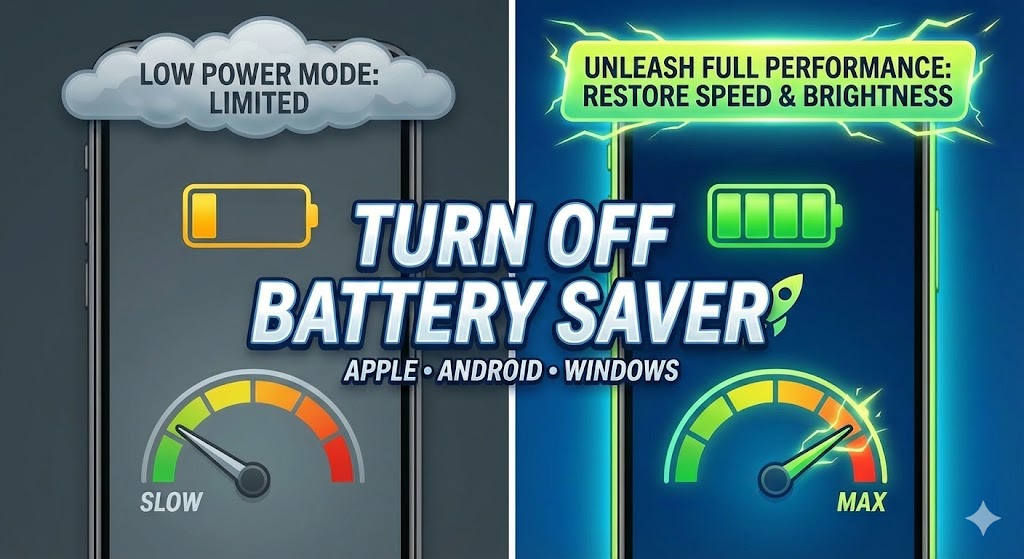
Is your phone screen annoyingly dim even though you cranked the brightness slider to the max? Are your emails not syncing in the background? Does your typically snappy laptop feel sluggish and stuttery while playing a video?
If you nodded along to any of these, your device is likely trapped in “Low Power Mode.”
While this feature is a lifesaver when you are stranded with 10% battery and no charger in sight, it can be a nuisance when you are trying to get work done with a full charge. Manufacturers call it by different names—Low Power Mode, Battery Saver, Power Saving Mode—but the result is the same: your device throttles its own performance, dims the screen, and kills background processes to squeeze out extra minutes of life.
Sometimes, this mode gets stuck. Sometimes, you enabled it by accident. And sometimes, the operating system turns it on automatically without you realizing it.
In this guide, we will walk you through exactly how to turn off these battery restrictions on every major platform: iPhone, Android, Windows, and Mac. Let’s get your device running at full speed again.
Apple: Disabling Low Power Mode on iPhone and iPad
Apple’s Low Power Mode is famous for turning your battery icon yellow. When active, it reduces your iPhone’s performance, lowers the screen refresh rate (making scrolling look choppy on “Pro” models), and stops photos from syncing to iCloud.
If your battery icon is yellow, Low Power Mode is on. Here is how to fix it.
Method 1: The Control Center (Fastest Way)
The quickest way to toggle this setting is through the Control Center.
- Swipe down from the top-right corner of your screen (or swipe up from the bottom if you have an iPhone with a Home button).
- Look for the Battery icon. If it is yellow/highlighted, tap it once.
- The icon should turn gray/transparent, and your main battery status bar will return to black or white.
Note: If you don’t see the battery icon in your Control Center, you can add it by going to Settings > Control Center and tapping the green “plus” sign next to Low Power Mode.
Method 2: The Settings Menu
If you prefer the main menu or need to check battery health while you are at it:
- Open the Settings app.
- Scroll down and tap on Battery.
- The very first option is Low Power Mode. Toggle the switch to OFF (gray).
Pro Tip for Automation:
Did your phone turn Low Power Mode on by itself? By default, iOS asks to turn this on when you hit 20% battery. However, if you have set up a customized “Shortcut” automation, it might be triggering at different times. If the mode keeps turning itself back on mysteriously, check your Shortcuts app under the “Automation” tab to see if a rule is forcing it.
Android: Turning Off Battery Saver (Samsung & Pixel)
Android devices offers a high degree of customization, which means the “Battery Saver” feature can sometimes be hidden in different menus depending on whether you use a Samsung Galaxy, a Google Pixel, or another brand.
Generally, Android’s power saving mode restricts vibration, location services, and background data.
For Samsung Galaxy Users (One UI)
Samsung calls this “Power saving.”
- Swipe down twice from the top of the screen to reveal the full Quick Panel.
- Look for the “Power saving” icon (usually a battery with a recycling symbol).
- If it is Blue, it is ON. Tap it to turn it OFF (Gray).
- Deep Dive: Go to Settings > Battery and device care > Battery. Here you can toggle “Power saving” off and even customize what it does (like turning off 5G but keeping the CPU speed normal).
For Google Pixel & Stock Android
Pixel phones call this “Battery Saver.”
- Open the Settings app.
- Tap on Battery.
- Tap on Battery Saver.
- Toggle the switch to Use Battery Saver to OFF.
The “Extreme” Trap:
Pixel phones also have an “Extreme Battery Saver” mode. If this is on, it pauses almost all apps except essential ones. If your apps are grayed out on your home screen, this is the culprit. You can disable it in the same menu mentioned above.
Check the Schedule:
If your Android phone keeps dimming every day at the same time, you likely have a schedule set. inside the Battery Saver menu, check “Set a schedule.” Ensure it is not set to turn on based on your routine or at a high percentage like 75%.
Windows: Disabling Battery Saver (Windows 10 & 11)
On Windows laptops, “Battery Saver” is aggressive. It can dim your display brightness by 30%, stop emails from syncing, and even prevent OneDrive from backing up your files.
Windows 11
- Quick Settings: Click on the cluster of icons in your taskbar (Volume, Wi-Fi, and Battery).
- Look for the Battery Saver icon (a leaf on a battery). If it is highlighted, click it to turn it off.
- Settings Menu: Go to Settings > System > Power & battery.
- Under the “Battery” section, look for “Battery saver.” Click “Turn off now.”
Preventing Auto-Enable:
By default, Windows turns this on when you hit 20%. To change this:
- In the Power & battery menu, look for “Turn battery saver on automatically at.”
- Change the dropdown menu to “Never” or a lower percentage like “10%” if you want to avoid performance throttling until the very last moment.
Windows 10
- Click the Action Center icon (speech bubble) in the bottom right corner of the taskbar.
- Click the Battery saver tile to toggle it off.
- Alternatively, click the battery icon in the taskbar and drag the power slider to the right, toward “Best performance.”
Mac: Managing Energy Mode (macOS)
MacBooks generally handle power management very efficiently, but newer versions of macOS (Monterey, Ventura, Sonoma, and Sequoia) have introduced a specific “Low Power Mode” similar to the iPhone.
When this is on, your MacBook might feel slower during heavy tasks like video editing or coding, and the screen brightness will be capped.
macOS Ventura, Sonoma, & Sequoia
- Click the Apple Menu () in the top-left corner.
- Select System Settings.
- Click Battery in the sidebar.
- Look for “Low Power Mode”. You will see a dropdown menu with these options:
- Never
- Always
- Only on Battery
- Only on Power Adapter
- Select “Never” to completely disable it, or “Only on Battery” if you want a balance.
macOS Monterey (and older)
- Open System Preferences.
- Click on Battery.
- Select the Battery tab in the sidebar.
- Uncheck the box that says “Low power mode.”
Why Turn It Off? (The “Hidden” Costs)
You might be wondering, “If it saves battery, why shouldn’t I leave it on all the time?”
While it’s great for emergencies, leaving these modes on permanently cripples the device you paid hundreds (or thousands) of dollars for. Here is what you lose when you keep Low Power Mode on:
- Screen Refresh Rate: On premium devices (iPhone Pro, Pixel Pro, Galaxy S series, MacBook Pro), the smooth 120Hz “ProMotion” display is locked to 60Hz. This makes scrolling feel jittery and laggy.
- 5G Connectivity: Many phones will drop to 4G/LTE in Low Power Mode, significantly slowing down your internet speeds.
- Background Sync: Apps like Gmail, Slack, and WhatsApp may not alert you to new messages until you actually open the app.
- Auto-Lock: Your screen will turn off very quickly (often after 30 seconds) to save power, which is frustrating if you are reading a recipe or an article.
Conclusion
Your device was designed to be powerful, bright, and fast. While Low Power Mode is an essential tool for those days when you forgot your charger, it shouldn’t be your default state. By diving into the settings of your iPhone, Android, or Windows laptop, you can ensure you’re getting the full performance you paid for.
Now that you’ve restored your device’s power, you might notice your battery draining slightly faster. This is the natural trade-off for better performance.

